waywall 
waywall is a Wayland compositor that provides various convenient features (key rebinding, Ninjabrain Bot support, etc) for Minecraft speedrunning. It is designed to be nested within an existing Wayland session and is intended as a successor to resetti.
Installation
waywall is available through some distribution-specific package repositories (presently the Arch User Repository and Nixpkgs.). Additionally, prebuilt binary packages are provided on the Releases page.
The following sections contain the methods available for installing waywall on various distributions, listed roughly in order of preference.
Arch Linux
waywall is available on Arch-based distributions through the the Arch User
Repository via the waywall-working-git package.
Prebuilt binary packages are additionally provided on the Releases page.
Lastly, waywall can be manually built from source.
Debian
Prebuilt binary packages for Debian 13 are provided on the Releases page.
Caution
waywall is unable to run on many Debian derivatives, including Linux Mint and most versions of Ubuntu, as their package repositories are too outdated.
Additionally, waywall can be manually built from source.
Note
If you want to compile from source on Debian 13, you will need to use Clang, as the packaged version of GCC is not up-to-date enough.
Fedora
Prebuilt binary packages for Fedora 42 are provided on the Releases page.
Additionally, waywall can be manually built from source.
OpenSUSE
Prebuilt binary packages for openSUSE Tumbleweed are available in the official package repositories.
waywall can be installed with zypper install waywall.
Nix
waywall is available in Nixpkgs since 26.05.
If it is available, waywall should be installed on your NixOS or Home Manager profile.
NixOS
# configuration.nix
{ pkgs, ... }:
{
  environment.systemPackages = [
    pkgs.prismlauncher
    pkgs.waywall
  ];
}
Home Manager
# home.nix
{ pkgs, ... }:
{
  home.packages = [
    pkgs.prismlauncher
    pkgs.waywall
  ];
}
Nix Profile
On other distributions with Nix installed, it can be installed with:
$ nix profile install nixpkgs#waywall
Building from source
waywall is written in C and uses the Meson build system, so you will need to
install a C toolchain and meson if they are not already on your system.
You will also need to install the following dependencies from your distribution’s package repositories:
eglglesv2luajitspngwayland-clientwayland-cursorwayland-eglwayland-protocolswayland-serverxcbxcb-compositexcb-resxcb-xtestxwaylandxkbcommon
Important
Many distributions, such as Fedora and Debian, split the “development files” (e.g. pkg-config data and C headers) into separate
-devor-develpackages. Make sure to find and install these in addition to the normal versions.
Compiling
You can download and build a copy of waywall with the following commands:
git clone https://github.com/tesselslate/waywall
cd waywall
make
The compiled binary will be located at build/waywall/waywall. If you’d like,
you can move it to somewhere on your $PATH.
Building with the packaging script
The package building script is able to create binary packages for Arch Linux, Debian 13, and Fedora 42.
Important
This script only builds packages for Arch Linux, Debian, and Fedora. If you use another distribution, you will have to build waywall from source.
This script automatically builds both the main waywall binary and the mandatory
patched version of GLFW, which is located at /usr/local/lib64/waywall-glfw/libglfw.so.
Dependencies
podmangitpacur fedora-42, arch and debian-trixie containers(from https://github.com/pacur/pacur)docker
Container setup
git clone https://github.com/pacur/pacur
cd pacur/docker
find . -maxdepth 1 -type d \( ! -name "archlinux" ! -name "debian-trixie" ! -name "fedora-42" \) -exec rm -rf {} +
for dir in */ ; do podman build --rm -t "pacur/${dir::-1}" "$dir"; done
The containers should now be installed. If the build fails, try rebooting your machine.
Setup
- Clone waywall repository
git clone https://github.com/tesselslate/waywall - Make the main script executable
chmod u+x build-packages.sh - Install pacur containers for
archlinux,fedora-42, anddebian-trixie - Run
./build-packages.shinside the waywall directory and select which distributions to build for- Within the script: 1 for Arch, 2 for Fedora, 3 for Debian, 4 for done
- Or, use the provided script flags for building (for example
./build-packages.sh --debianor./build-packages.sh --fedora --arch)
- Enjoy
Installation
The script will output where the build artifacts are located (for example Build artifacts are located in: ~/waywall/waywall-build).
On some distributions, you can double-click the correct built package in your
graphical file manager of choice. Otherwise, install it from the terminal with
one of the following commands:
- ArchLinux:
sudo pacman -U ~/waywall/waywall-build/waywall-0.5-1-x86_64.pkg.tar.zst - Fedora:
sudo dnf localinstall ~/waywall/waywall-build/waywall-0.5-1.fc42.x86_64.rpm - Debian:
sudo dpkg -i ~/waywall/waywall-build/waywall_0.5-1_amd64.deb
Setup
After compiling waywall, you will need to configure your instance(s) to use it. It is highly recommended that you use Prism Launcher. If you already have it, MultiMC can work, but it lacks some features.
Caution
If your Minecraft launcher of choice is installed in some sort of container (e.g. Flatpak), then waywall will not work.
Consider installing Prism Launcher from your distribution’s package manager (if available) or from the Downloads page.
GLFW
Minecraft uses a library known as GLFW in order to create a window and receive keyboard and mouse input. Unfortunately, the version shipped by default does not work with waywall, so you will need to compile a patched version of GLFW.
Tip
If you used a prebuilt package or built your own with the package building script, then you already have the correct version of GLFW available! It can be found at
/usr/local/lib64/waywall-glfw/libglfw.so.
Tip
If you are using Prism Launcher installed from Nixpkgs, you can skip and continue to the next step as it already includes the patch.
If you have Nix but are using Prism Launcher from a different source, you can install the
glfw3-minecraftpackage withnix profileand use the path/home/USER/.nix-profile/lib/libglfw.soin the upcoming steps.
Note
Version 26.1 does not require this patch, instead requiring you to add the following Java arguments:
-DMC_DEBUG_ENABLED -DMC_DEBUG_PREFER_WAYLAND.
You can compile the patched version of GLFW with the following commands:
# clone GLFW
git clone https://github.com/glfw/glfw
cd glfw
git checkout 3.4

# apply the patches
curl -o glfw.patch https://raw.githubusercontent.com/tesselslate/waywall/be3e018bb5f7c25610da73cc320233a26dfce948/contrib/glfw.patch
git apply glfw.patch

# compile GLFW
cmake -S . -B build -DBUILD_SHARED_LIBS=ON -DGLFW_BUILD_WAYLAND=ON
cd build
make
After running these commands, the new patched version of GLFW will be located at
glfw/build/src/libglfw.so (or src/libglfw.so from the build directory.)
You can copy it to a safer location like ~/.local/lib64.
Important
If you move the GLFW library to another location, make sure to copy the symlinks (
libglfw.so.3andlibglfw.so.3.4) as well.
Instance setup
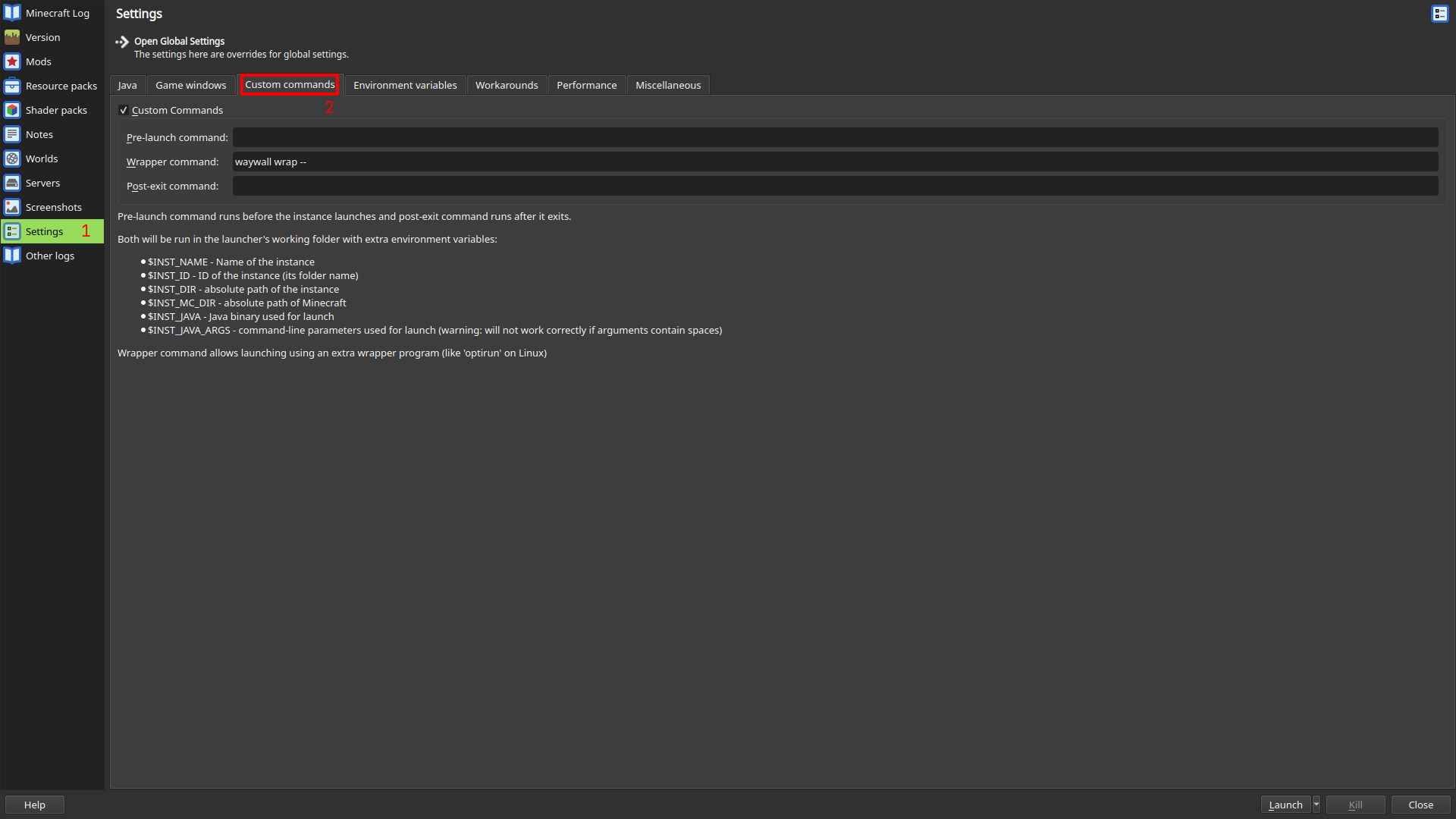
First, you need to configure your instance to use waywall. Navigate to the
Custom commands submenu and enter waywall wrap -- into the Wrapper command
textbox. If needed, change waywall to point to the waywall executable you
compiled earlier.
Secondly, you will need to use the patched version of GLFW. This differs based on whether you are on PrismLauncher or MultiMC.
Prism Launcher
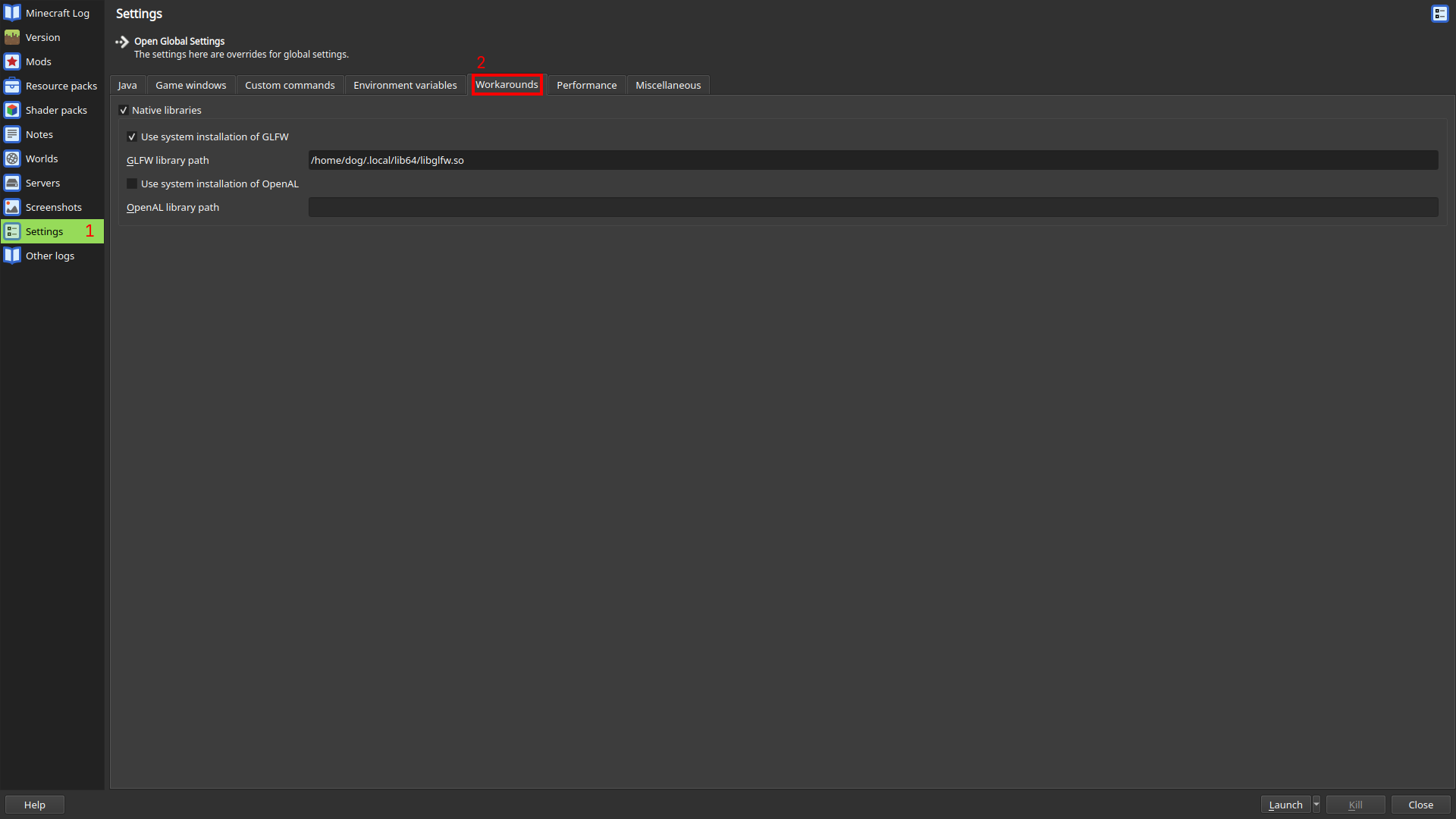
You can configure your instance to use the patched version of GLFW by opening
its settings (with the Edit button on the right pane) and going to Settings
-> Workarounds. Then, enable Native libraries and Use system installation of GLFW. Finally, enter the path to the patched libglfw.so you just compiled
or installed.
Important
Prism Launcher will not expand
~. If your patched GLFW is within your home directory, you need to type out the absolute path.
Tip
If you are using Prism Launcher installed from Nixpkgs, you must leave the path field empty to automatically use the patched GLFW.
MultiMC
You can configure your instance to use the patched version of GLFW by opening
its settings (with the Edit button on the right pane) and going to Settings.
Then, go to the Workarounds tab and confirm that Use system installation of GLFW is disabled. Finally, return to the Java tab and add
-Dorg.lwjgl.glfw.libname=PATH to your Java arguments, replacing PATH with
the path to the patched libglfw.so you just compiled.
Important
MultiMC will not expand
~. If your patched GLFW is within your home directory, you need to type out the absolute path.
Configuration
waywall follows the XDG Base Directory specification and will search for a
configuration file in $XDG_CONFIG_HOME/waywall (usually ~/.config/waywall).
If no configuration file exists, one will be automatically generated for you.
You can use the following configuration as a starting point:
local waywall = require("waywall")
local helpers = require("waywall.helpers")

local config = {
    input = {
        layout = "us",
        repeat_rate = 40,
        repeat_delay = 300,

        sensitivity = 1.0,
        confine_pointer = false,
    },
    theme = {
        background = "#303030ff",
    },
}

config.actions = {}

return config
NVIDIA
If you use an NVIDIA GPU, you will also need to set the environment variable
__GL_THREADED_OPTIMIZATIONS to 0. This can be done in the Environment variables submenu.
This environment variable fixes a startup crash (GLFW error 65544) and also
ensures that preemptive navigation works correctly.
Dual-GPU systems
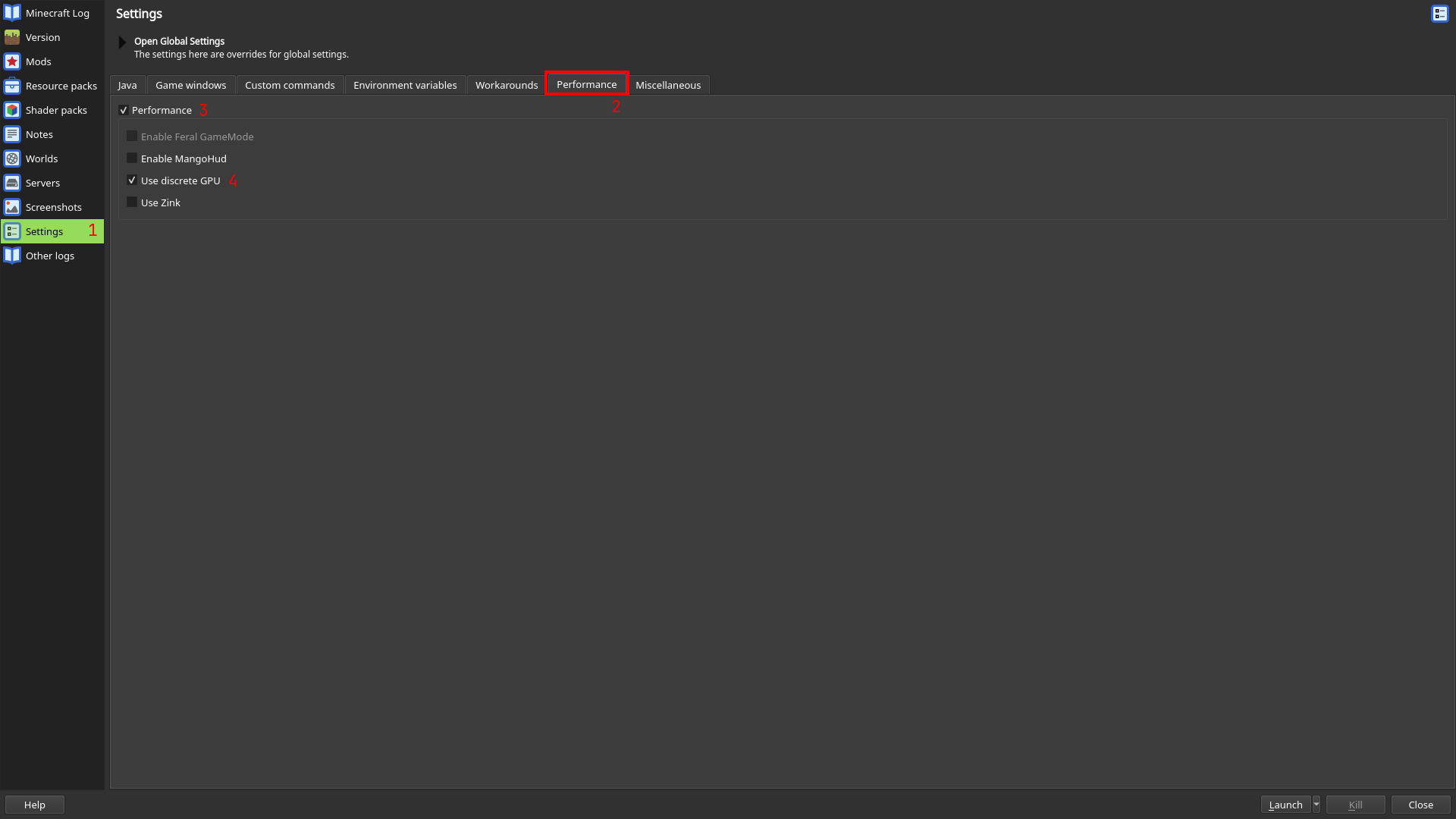
If you have a system with an Nvidia GPU and an integrated GPU (quite common
in laptops), go to the Performance tab and check Use discrete GPU.
Known Issues
This page contains a list of known issues which you may encounter while using waywall.
Ninjabrain Bot calibration does not work
Ninjabrain Bot’s calibration functionality has issues on Linux and does not work correctly within waywall. Using boat eye largely eliminates the need to calibrate. If boat eye is not an option, you may need to calibrate your standard deviation outside of waywall.
waywall freezing in some Nvidia environments
Older versions of the Nvidia driver may cause waywall to freeze until waywall receives more events from your compositor (mouse movement, keyboard inputs, window resizing, etc).
If you have V-Sync enabled ingame, disabling it should fix the problem. If your framerate is uncapped and V-Sync is off, then try capping your framerate to less than 5x your monitor refresh rate.
If neither of these fix the problem, please let us know in Discord or on the issue tracker.
Display scaling not automatically accounted for
waywall does not currently support either of the Wayland protocols used for
display scaling (1,
2). However, you can
manually configure waywall to use a specific resolution while fullscreened
with the fullscreen_width and fullscreen_height options.
Lua
waywall is configured using the Lua programming language. If you have not used Lua before, you may find the documentation to be helpful:
- Programming in Lua
- Do note that this book is slightly out of date, since it was written for Lua 5.0. waywall uses Lua 5.1, which has some additional features and changes.
- Lua 5.1 Reference Manual
If you are familiar with Lua, it is worth noting that waywall uses LuaJIT and makes some small changes to the behavior and standard library of Lua. See Lua changes for more information.
Caution
Lua code executed by waywall is allowed to interact with the host operating system in various ways, such as spawning subprocesses and modifying files on disk. Read other people’s code and do not blindly copy and paste it into your own configuration.
Profiles
By default, waywall attempts to read and execute a configuration file from
$XDG_CONFIG_HOME/waywall/init.lua (typically, this is equivalent to
~/.config/waywall/init.lua).
If launched with a --profile foo argument, waywall will instead attempt to
read and execute a configuration file from $XDG_CONFIG_HOME/waywall/foo.lua.
Any number of profiles can exist within the waywall configuration directory.
Hot reload
waywall attempts to watch for any and all changes to .lua files within the
waywall configuration directory. When it detects a change, it will attempt to
automatically reload your configuration. If successful, the Lua VM will be
recreated and any changes to variables or other state within will not be
transferred to the new configuration.
Ninjabrain Bot
On most Wayland compositors, the contents of the clipboard are only offered to clients with input focus. This means that Ninjabrain Bot may only become aware of eye throws if you tab out of waywall and give it focus, which is not ideal.
To solve this, you can run Ninjabrain Bot inside of waywall so that it always receives clipboard updates from the game immediately. For example, the following action will start Ninjabrain Bot inside of waywall when run:
-- ... the rest of your configuration

config.actions = {
    -- ... the rest of your actions

    ["Ctrl-Shift-N"] = function()
        -- Change the path to your actual Ninjabrain Bot jar!
        waywall.exec("java -jar /path/to/ninjabrain-bot.jar")
    end
}

return config
Ninjabrain Bot is treated as a floating window, which are hidden by default. To
make it visible, you can create another action which uses
waywall.show_floating or helpers.toggle_floating.
Tip
If Ninjabrain Bot displays a blank window after opening, try launching it with a version of Java newer than Java 8 (i.e. Java 17).
If you are using NixOS and Ninjabrain Bot fails to launch, try adding
-Dswing.defaultlaf=javax.swing.plaf.metal.MetalLookAndFeelto your arguments when launching Ninjabrain Bot.
Positioning floating windows
You can automatically “anchor” Ninjabrain Bot to a specific position in the
waywall window by using the theme.ninb_anchor option.
Additionally, you can manually move all un-anchored floating windows by holding shift and dragging them with the left mouse button held down.
Options
waywall has a number of built-in options for configuring its appearance and behavior. These options can be set by returning a table from your configuration file, e.g.:
local config = {
    input = {
        layout = "us",

        -- ... more options here
    },

    -- ... more options here
}

return config
The following sections will cover all of the available options which can be set using this configuration table.
Actions
The actions section of the configuration table allows you to configure any
number of “actions,” which are arbitrary Lua functions that get executed when
a key or button combo is pressed.
Default values
local config = {
    actions = {},
}

return config
Configuration
The actions table should contain a list of key-value pairs where each key is
a string describing the input (containing a key or button and any number of
modifiers) and the value is a function to be executed when the input is
received. For example:
local config = {
    actions = {
        -- This will run if you press T with no modifier keys held.
        ["T"] = function() end,

        -- This will run if you press T with only Shift held.
        ["Shift-T"] = function() end,

        -- This will run if you press Button 4 (side button) with only Control
        -- held.
        ["Ctrl-MB4"] = function() end,
    },
}

return config
The full lists of keysyms, mouse buttons, and modifiers can be found in the Lookup Tables section.
Note
An action will only trigger if your pressed modifiers exactly match those specified. For example, an action for
"T"will only trigger if you press T while Shift, Control, etc. are not pressed. However, Caps Lock and Num Lock (mod2) will be ignored unless the action explicitly requires them.
Important
The
*modifier acts as a wildcard, allowing the action to run while other modifier keys are pressed. An action for"*-T"will trigger if you press T, regardless of what modifier keys (Shift, Control, etc.) are pressed.This also works in combination with other modifiers:
"*-Shift-T"will trigger as long as Shift is pressed, but other modifiers will not prevent the action from being run.
Input consumption
By default, if waywall finds and runs an action, the input which triggered the action will be silently dropped and not passed on to the Minecraft instance.
However, in some cases (e.g. if an action fails to run), you may want the input
to be passed along to the Minecraft instance as normal. You can make this happen
by returning false from your action’s function.
If your action pauses execution at any point (e.g. by calling
waywall.sleep()) it will always consume the input, even if you returnfalse.
Input
The input section of the configuration table allows you to configure how
keyboard and mouse input is processed by waywall in a number of ways.
Default values
local config = {
    input = {
        -- XKB keymap options
        layout = "",
        model = "",
        rules = "",
        variant = "",
        options = "",

        -- key/button remappings
        remaps = {},

        -- key repeat
        repeat_rate = -1,
        repeat_delay = -1,

        -- mouse options
        sensitivity = 1.0,
        confine_pointer = false,
    },
}

return config
Keymap configuration
waywall allows you to use a different keyboard layout from the rest of your Wayland session (e.g. for search crafting with different languages).
There are five options in the input table which can be used to configure which
keymap is loaded by XKB:
layout,model,rules,variant,options
Unfortunately, detailed information on XKB configuration is outside the scope of
this document. You can refer to the libxkbcommon documentation for more
information. If installed, you can also refer to the standard database of XKB
configuration rules, which is typically located at /usr/share/X11/xkb.
Input remapping
waywall allows you to remap keys and mouse buttons to one another in any
fashion via the remaps table within the input table. Here are a few
examples:
{
    ["MB4"] = "Home",   -- remap side button to Home
    ["X"] = "F3",       -- remap X to F3
}
Each key-value pair specifies a single remapping, where the key is the source input (button or key) and the value is the resulting output which gets sent to the game.
The list of all available keycodes and mouse buttons can be found in the Lookup Tables section.
Key repeat
waywall allows you to configure how key repeat works with the repeat_rate
and repeat_delay options.
The repeat_rate option specifies how many times per second a keypress should
be repeated while it is held down. This option is mostly useful for increasing
the speed at which the F3+F key combination changes your render distance.
The repeat_delay option determines how long (in milliseconds) a key must be
held down before it will start repeating.
By default, both options are set to a value of -1, which means they will use
the same values as your main Wayland session.
Warning
If you use a short
repeat_delayand setrepeat_rateto more than 20 Hz, you may experience issues with switching hotbar slots. This is due to a bug in how the game handles certain keybinds and can be avoided by either using a longerrepeat_delayor using arepeat_rateno greater than 20 Hz.
Mouse sensitivity
The sensitivity option applies a constant multiplier to your mouse motion
while aiming with the camera ingame. The default value of 1.0 results in
no change, while 2.0 would make it twice as fast and 0.5 would make it
half as fast.
Important
This option only affects your camera movement, not your mouse movement in menus. Additionally, it only takes effect when Raw Input is disabled ingame.
Pointer confinement
The confine_pointer option allows you to lock your mouse pointer to the
waywall window. This can be useful if you have two monitors and accidentally
flick your mouse to the side while in your inventory, which might otherwise
cause you to focus a different window and lose time.
Theme
The theme section of the configuration table allows you to configure the
appearance of waywall.
Default values
local config = {
    theme = {
        background = "#000000ff",
        background_png = "",

        cursor_theme = "",
        cursor_icon = "",
        cursor_size = 0,

        ninb_anchor = "",
        ninb_opacity = 1.0,
    },
}

return config
Background
The background or background_png option determines the background of the
waywall window. background_png specifies the path to a PNG file, otherwise
background determines the solid color background. The background is only
visible while the Minecraft window does not occupy the entire waywall window
(e.g. while using Thin BT or boat eye.)
For background, you may specify either an RGB or RGBA hex color. Different
compositors may handle non-opaque background colors differently, and non-opaque
colors may not appear correctly if waywall is fullscreened.
Cursor theme
waywall provides three options for configuring the appearance of the cursor:
cursor_theme,cursor_icon,cursor_size
By default, these options are left unset, and waywall will attempt to automatically detect and use the cursor settings of your main Wayland session.
The cursor_theme option should contain the name of an installed icon theme
(typically in /usr/share/icons or ~/.local/share/icons). The cursor_icon
option should point to a valid Xcursor file within the specified theme.
On some compositors, such as mutter (GNOME), waywall’s automatic cursor theme detection will fail. waywall attempts to use the
XCURSOR_*environment variables andcursor_shape_v1protocol for picking a cursor theme, but GNOME does not support either of these mechanisms and instead only exposes a GNOME-specific DBus interface.
Ninjabrain Bot
There are two options for changing the appearance of Ninjabrain Bot:
ninb_anchor,ninb_opacity
If set, the ninb_anchor option will cause the Ninjabrain Bot window to be
locked to a specific side or corner of the waywall window. The following are
valid values for ninb_anchor:
toplefttoptoprightleftrightbottomleftbottomright
If you would like to further customize the position of Ninjabrain Bot, you can
instead provide a table to ninb_anchor like the following:
{
    position = "right",
    x = -10,
    y = 10,
}
This will position Ninjabrain Bot 10 pixels to the left of and below the center
of the right anchor position. You can omit one or both of x and y.
The ninb_opacity option allows you to make the Ninjabrain Bot window
translucent. The default value of 1.0 results in a fully opaque window, while
values between 0.0 and 1.0 will result in varying degrees of translucency.
The
ninb_opacityoption requires that your compositor supports thealpha_modifier_v1protocol. If it is not supported, the option will have no effect.
Shaders
The shaders section of the configuration table allows you to load custom
OpenGL shaders to further customize the appearance of various scene objects
(mirrors, images, text).
Warning
This option is intended for more advanced users who are able to write shaders to do what they want. A tutorial on how to write OpenGL shaders is outside of the scope of this documentation (and I am not particularly qualified to write one anyway.)
Default values
local config = {
    shaders = {},
}

return config
Configuration
The shaders table should contain a list of key-value pairs where each key
is a string containing the name of the shader and the value is a table
describing the shader’s sources (fragment and/or vertex). For example:
local read_file = function(name)
    local home = os.getenv("HOME")

    local file = io.open(home .. "/.config/waywall/" .. name, "r")
    local data = file:read("*a")
    file:close()

    return data
end

local config = {
    shaders = {
        ["pie_chart"] = {
            vertex = read_file("pie_chart.vert"),
            fragment = read_file("pie_chart.frag"),
        }
    }
}

return config
If either vertex or fragment is unspecified, they will default to the
implementations provided by waywall’s built-in “texcopy” shader. You can
view the sources for the texcopy shader here.
Vertex format
The following attributes are provided to the vertex shader. You can use as many as you like, and leaving attributes unused is fine.
v_src_pos (vec2)
v_src_pos contains the pixel coordinate which should be sampled from the
source texture.
v_dst_pos (vec2)
v_dst_pos contains the pixel coordinate at which the vertex is located.
v_src_rgba (vec4)
v_src_rgba contains the source color for the color-keying operation (if any).
An alpha value of 0 signals that no color keying should happen.
v_dst_rgba (vec4)
v_dst_rgba contains the output color for the color-keying operation (if any).
Uniforms
The following uniforms are provided to the vertex shader:
u_src_size (vec2)
u_src_size contains the size of the source texture in pixels.
u_dst_size (vec2)
u_dst_size contains the size of the destination texture (waywall window) in
pixels.
Example
The following shaders perform color-keying to only accept the three main colors
of the gameRenderer pie chart (orange for block entities, pink for entities,
and green for unspecified):
pie_chart.vert
attribute vec2 v_src_pos;
attribute vec2 v_dst_pos;

uniform vec2 u_src_size;
uniform vec2 u_dst_size;

varying vec2 f_src_pos;

void main() {
    gl_Position.x = 2.0 * (v_dst_pos.x / u_dst_size.x) - 1.0;
    gl_Position.y = 1.0 - 2.0 * (v_dst_pos.y / u_dst_size.y);
    gl_Position.zw = vec2(1.0);

    f_src_pos = v_src_pos / u_src_size;
}
pie_chart.frag
precision highp float;

varying vec2 f_src_pos;

uniform sampler2D u_texture;

const float threshold = 0.01;
const vec3 pink = vec3(0.882, 0.271, 0.761); // #e145c2
const vec3 orange = vec3(0.914, 0.427, 0.302); // #e96d4d
const vec3 green = vec3(0.271, 0.796, 0.396); // #45cb65

void main() {
    vec4 color = texture2D(u_texture, f_src_pos);

    bool is_pink = all(lessThan(abs(color.rgb - pink), vec3(threshold)));
    bool is_orange = all(lessThan(abs(color.rgb - orange), vec3(threshold)));
    bool is_green = all(lessThan(abs(color.rgb - green), vec3(threshold)));

    if (is_pink || is_orange || is_green) {
        gl_FragColor = color;
    } else {
        gl_FragColor = vec4(0.0, 0.0, 0.0, 0.0);
    }
}
Window
The window section of the configuration table allows you to configure aspects
of the window that waywall opens.
Default values
local config = {
    window = {
        fullscreen_width = 0,
        fullscreen_height = 0,
    },
}

return config
Fullscreen resolution
The fullscreen_width and fullscreen_height options allow you to specify a
width and height which waywall should force the game to render at while the game
is fullscreened.
This option is especially useful if you have display scaling enabled (i.e. 110% at 1440p) but would still like Minecraft to render at a normal resolution.
If either value is 0, then waywall will use whichever resolution the compositor tells it to use.
Experimental
The experimental section of the configuration table contains miscellaneous
and developer-focused settings.
Default values
local config = {
    experimental = {
        debug = false,
        jit = false,
        tearing = false,
    },
}

return config
Debug
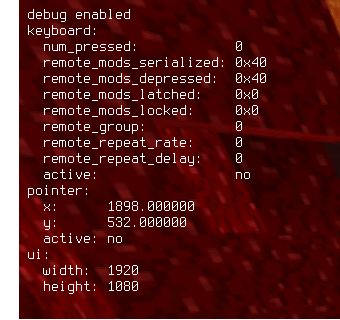
When enabled, the debug option will draw text about the state of waywall in
the upper left corner of the window.
This information is usually only needed for development purposes.
JIT
waywall uses LuaJIT as its Lua implementation. By default, the JIT is
disabled due to limitations with the Lua debug package. If your configuration
contains a lot of compute-heavy Lua code, you may experience better performance
by setting the jit option to true.
Warning
Enabling the JIT may cause the instruction limit to behave inconsistently. If your configuration has infinite loops, waywall may freeze permanently.
Tearing
The tearing option allows you to enable screen tearing (it is disabled by
default.) This option requires your compositor to support the
tearing_control_v1 protocol, or else it will have no effect.
waywall
The waywall module contains various functions for interacting with waywall.
active_res
This function returns the current size of the Minecraft window (in pixels). If
no resolution has been set with waywall.set_resolution(), the returned width
and height values will equal zero.
Arguments
None
Return values
width: numberheight: number
This function cannot be called during startup.
current_time
This function returns the number of milliseconds which have elapsed since an
arbitrary epoch. The time is gathered using CLOCK_MONOTONIC.
Arguments
None
Return values
ms: number
exec
This function asynchronously executes the given command as a subprocess. Arguments are split by spaces and no further processing is performed; quoting arguments or performing shell substitutions will require you to run a shell script.
If the spawned subprocess does not exit before waywall, it will be killed with
SIGKILL when waywall closes.
Arguments
command: string
Return values
None
This function cannot be called during startup.
floating_shown
This function returns whether or not floating windows (i.e. Ninjabrain Bot) are currently visible.
Arguments
None
Return values
shown: boolean
This function cannot be called during startup.
get_key
This function returns a boolean whether a key is currently pressed on the keyboard. See Lookup Tables for a list of valid keycodes.
Arguments
key: string
Return values
pressed: boolean
This function cannot be called during startup.
image
This function loads a PNG image from the file system and displays it over top of the waywall window. You may want to use it for e.g. your boat eye overlay.
The options table can have the following options, although only dst is
required:
{
    -- absolute location/size of image in waywall window
    dst = {
        x = 100,
        y = 100,
        w = 200,
        h = 200,
    },

    -- optional
    depth = 0,

    -- optional
    shader = "shader_name"
}
For more information on custom shaders, see Shaders.
Arguments
path: stringoptions: table
Return values
image: image object
This function cannot be called during startup.
listen
This function registers the given event listener to be called whenever the given event occurs. The returned cancellation function can be called to unregister the event listener so that it is not triggered anymore.
The list of valid event names is:
load- For when configuration loading is finished and functions such as
waywall.text()are now legal to call
- For when configuration loading is finished and functions such as
resolution- For resolution changes with
waywall.set_resolution()
- For resolution changes with
state- For updates to the instance’s state-output file
Arguments
event: stringlistener: function
Return values
cancel: function
mirror
This function creates a “mirror” which displays a specific area of the Minecraft window on top of the waywall window. You may want to use it for e.g. boat eye measurement.
The options table can have the following options, although only src and
dst are required:
{
    -- area to copy from minecraft window
    src = {
        x = 160,
        y = 900,
        w = 100,
        h = 100,
    },

    -- absolute location/size of mirror in waywall window
    dst = {
        x = 0,
        y = 300,
        w = 100,
        h = 100,
    },

    -- optional
    color_key = {
        input = "#dddddd",
        output = "#ee1111",
    },

    -- optional
    depth = 0,

    -- optional
    shader = "shader_name",
}
The color_key option allows you to perform color keying on the mirrored area,
which will only preserve pixels of the given input color and change them to
the output color.
For more information on custom shaders, see Shaders.
Arguments
options: table
Return values
mirror: mirror object
This function cannot be called during startup.
press_key
This function sends a fake key press (keydown event followed by a keyup event) to Minecraft using the given keycode. See Lookup Tables for a list of valid keycodes.
Arguments
key: string
Return values
None
This function cannot be called during startup.
profile
This function returns the name of the profile if one was provided at startup
with --profile. Otherwise, it returns nil.
Arguments
None
Return values
profile: string or nil
set_keymap
This function attempts to change the current XKB layout in use by Minecraft. The following keys will be read from the options table if they are set:
layoutmodelrulesvariantoptions
These keys behave the same as those in the input configuration table.
Arguments
options: table
Return values
None
This function cannot be called during startup.
set_remaps
This function changes the set of active input remaps and follows the same format as the table from the initial input configuration.
Arguments
remaps: table
Return values
None
This function cannot be called during startup.
set_resolution
This function sets the resolution of the Minecraft window. If both width and
height are 0, the Minecraft window will instead stretch to fit the bounds of
the waywall window (and will continue to do so as the window is resized).
Warning
Make sure your resolutions follow the leaderboard rules! You may only use a single resolution which extends past the bounds of your monitor, and it is not allowed to use a resolution greater than 16384 pixels in width or height.
Arguments
width: numberheight: number
Return values
None
This function cannot be called during startup.
set_sensitivity
This function changes the mouse sensitivity multiplier which is used for camera movement. If the provided sensitivity is 0, the sensitivity will instead be reset to whatever value you have specified in the input configuration table.
Arguments
sensitivity: number
Return values
None
This function cannot be called during startup.
show_floating
This function sets whether or not floating windows (i.e. Ninjabrain Bot) should be visible.
Arguments
show: boolean
Return values
None
This function cannot be called during startup.
sleep
This function causes the current Lua execution context to pause for the given number of milliseconds. Other Lua code, such as other keybind or event handlers, can be executed while the current execution context is paused.
Calling this function forbids keybind handlers from marking an input as non-consumed. See Input consumption for more details.
Arguments
ms: number
Return values
None
This function cannot be called during startup.
state
This function returns a table describing the current state of the Minecraft instance according to the State Output mod. If the instance does not have State Output installed and enabled, this function will throw an error when called.
The returned table may have one of several structures depending on the state
of the instance. The screen field will always be present, allowing you to
determine which form it has:
title, waiting, and wall
{
    screen = "title" or "waiting" or "wall",
}
generating and previewing
{
    screen = "generating" or "previewing",
    percent = 0,
}
inworld
{
    screen = "inworld",
    inworld = "unpaused" or "paused" or "menu",
}
Arguments
None
Return values
state: table
This function cannot be called during startup.
text
This function creates and displays text over top of the waywall window.
The options table can have the following options, of which x and y are
non-optional:
{
    -- absolute location of text in waywall window
    x = 100,
    y = 100,

    -- color of text (optional)
    color = "#abcdef",

    -- size of text (optional)
    size = 1,

    -- optional
    depth = 0,

    -- optional
    shader = "shader_name"
}
Arguments
text: stringoptions: table
Return values
text: text object
This function cannot be called during startup.
toggle_fullscreen
This function toggles whether or not the waywall window is fullscreen. This is intended for users of compositors which do not provide an option to set windows to fullscreen without decorations.
Arguments
None
Return values
None
This function cannot be called during startup.
waywall.helpers
The waywall.helpers module contains various “helper” functions which provide
common functionality.
ingame_only
This function wraps the given function so that it only runs if the user is in a
world and not in any menu. If these conditions are not met, the given function
will not be called and false will be returned.
If State Output is not enabled, calling the returned function will throw an error.
Arguments
func: function
Return values
ingame_func: function
The returned function cannot be called during startup.
res_image
This function creates an image which only appears when a specific resolution is active, and is not present otherwise. It is effectively equivalent to:
waywall.listen("resolution", function()
    local width, height = waywall.active_res()

    if width == DESIRED_WIDTH and height == DESIRED_HEIGHT then
        -- make image...
    else
        -- destroy image...
    end
end)
The image will be created with the given path and options and will only
appear on screen while the active resolution is equal to width x height.
Arguments
path: stringoptions: tablewidth: numberheight: number
Return values
cancel: function
res_mirror
This function creates a mirror which only appears when a specific resolution is active, and is not present otherwise. It is effectively equivalent to:
waywall.listen("resolution", function()
    local width, height = waywall.active_res()

    if width == DESIRED_WIDTH and height == DESIRED_HEIGHT then
        -- make mirror...
    else
        -- destroy mirror...
    end
end)
The mirror will be created with the given options and will only appear on
screen while the active resolution is equal to width x height.
Arguments
options: tablewidth: numberheight: number
Return values
cancel: function
toggle_floating
This function toggles whether or not floating windows are visible.
Arguments
None
Return values
None
This function cannot be called during startup.
toggle_res
This function returns another function which, when called, toggles between the provided resolution and no resolution (stretching Minecraft back to the bounds of the waywall window).
If a value is provided for the sens parameter, toggling to the given
resolution will set the mouse sensitivity to that value. Toggling away from the
resolution will set the sensitivity back to the default value specified in the
input configuration table.
Arguments
width: numberheight: numbersens: number (optional)
Return values
toggle: function
The returned function cannot be called during startup.
Object types
Some functions of the waywall API return objects of custom types. This section documents those types and the functionality that they provide.
Scene objects
Scene objects represent various kinds of graphics which are drawn on the waywall window. There are currently three kinds of scene objects:
All scene objects share a common set of methods, although some may have extra methods of their own.
Scene objects will disappear either when they are explicitly closed or when they are garbage collected by the Lua virtual machine.
Tip
Because scene objects disappear when garbage collected, you should make sure to store a reachable reference to any objects you create, such as in a local variable at the top level of your configuration.
Additionally, reloading your configuration will cause all live scene objects to be destroyed (since they are garbage collected when the Lua virtual machine is destroyed and recreated for your new configuration.)
Depth
All scene objects have a depth value, which can be set at the time of creation
or with the set_depth method. Scene objects with a greater depth
will appear in front of objects with a lesser depth. Scene objects with a
negative depth will appear beneath the Minecraft instance.
Scene objects without an explicitly specified depth, or objects whose depth has been set to 0, follow different ordering rules. The complete order in which scene objects appear is as follows (starting from the furthest forward to the furthest back):
- All objects with positive depth
- Images with unspecified depth
- Mirrors with unspecified depth
- Text with unspecified depth
- The Minecraft instance
- All objects with negative depth
Methods
close
This method closes the scene object, causing it to disappear from the scene. It is invalid to call any methods on a scene object after it has been closed.
Arguments
- None
Return values
- None
get_depth
This method returns the current depth of the scene object, or 0 if no depth has been set.
Arguments
- None
Return values
depth: number
set_depth
This method sets the depth of the scene object. After the depth is set, it will be arranged according to the ordering rules.
Arguments
depth: number
Return values
- None
image
The image type represents a scene object displaying an image. It is returned
by waywall.image().
Methods
Image objects have all of the methods which are available to scene objects.
mirror
The mirror type represents a scene object displaying a mirror. It is returned
by waywall.mirror().
Methods
Mirror objects have all of the methods which are available to scene objects.
text
The text type represents a scene object displaying text. It is returned by
by waywall.text().
Methods
Text objects have all of the methods which are available to scene objects.
Lookup Tables
waywall has pre-defined sets of names which correspond to keys, mouse buttons, and modifiers. These are used when loading your configuration. All names are case insensitive.
Keycodes
Important
Keycodes are used for remapping keys and buttons in your configuration and for pressing keys in actions.
The list of valid keycodes can be found in waywall’s source code here.
Virtually all normal keyboard keys are present, although some may not be named
as you expect. waywall follows the names defined by the input-event-codes.h
header from Linux.
Keysyms
Important
Keysyms are used for adding actions to your configuration.
The list of valid keysyms comes from libxkbcommon. The xkbcommon-keysyms.h
header contains all of the valid keysym names. Each keysym’s name is prefixed
with XKB_KEY_.
Modifiers
The following table lists all valid names for modifiers:
| Modifier | Names | ||
|---|---|---|---|
| Shift | shift | ||
| Control | ctrl | control | |
| Caps Lock | caps | lock | capslock |
| Alt | mod1 | alt | |
| Num Lock | mod2 | num | numlock |
| Mod3 | mod3 | ||
| Super | mod4 | super | win |
| Mod5 | mod5 |
Mouse buttons
The following table lists all valid names for mouse buttons:
| Button | Names | |||
|---|---|---|---|---|
| Left Button | lmb | m1 | mouse1 | leftmouse |
| Middle Button | mmb | m3 | mouse3 | middlemouse |
| Right Button | rmb | m2 | mouse2 | rightmouse |
| Side button (M4) | mb4 | m4 | mouse4 | |
| Side button (M5) | mb5 | m5 | mouse5 |
Lua changes
waywall makes use of LuaJIT, an alternative implementation of Lua 5.1 which provides better performance and additional functionality. A list of LuaJIT’s additions is available here.
Note: The
jitpackage from LuaJIT is not available in waywall.
Instruction count limit
waywall will allow a maximum of 50 million Lua instructions to be executed when it calls into user code (e.g. actions). This limit is in place to prevent buggy configurations from hard-locking waywall.
If this limit is exceeded, an error will be thrown, causing Lua execution to
stop. This error cannot be caught with pcall or xpcall.
Warning
Enabling the JIT may cause the instruction limit to behave inconsistently. If your configuration has infinite loops, waywall may freeze permanently.
Standard library changes
waywall makes a few changes and additions to the Lua standard library:
package.pathis automatically updated to include the waywall configuration directory, so you canrequire()other files contained within it.pcallandxpcallhave been modified to prevent user code from disabling the instruction count limit by accident.printhas been modified so that its output appears in a similar format to other waywall log messages.os.setenvis a new function added by waywall which behaves much like C’ssetenv()and allows for changing and deleting environment variables.- Calling
os.setenvwith two strings (a name and value) will behave like C’ssetenv(). - Calling
os.setenvwith a string and nil will unset the given environment variable.
- Calling
You can refer to the startup code to see all of the changes waywall makes in more detail.